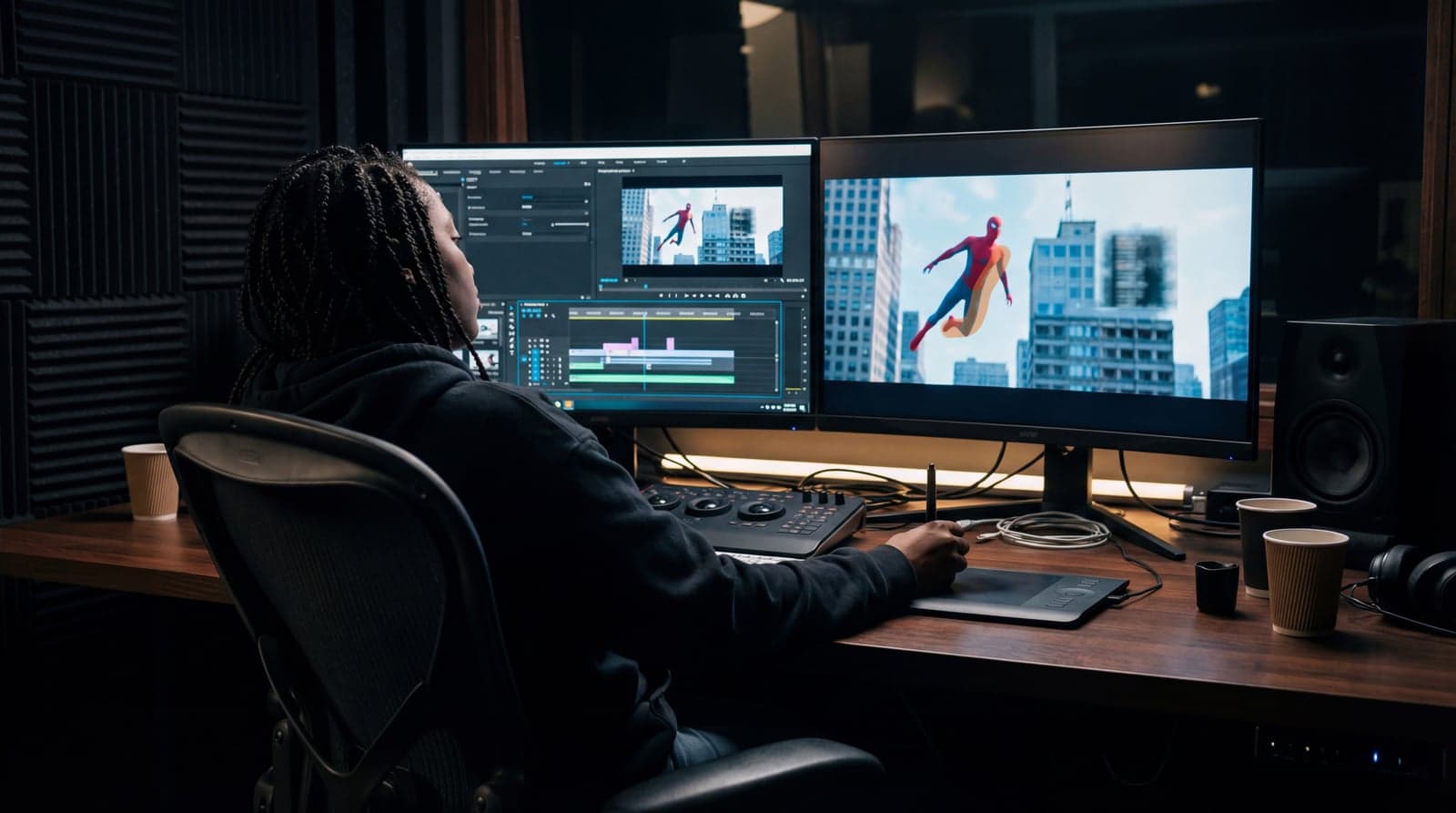
Inpainting
Mask an area, describe the change, keep the rest pixel-perfect. Backed by GPT Image 2.
Inpainting edits one region of an image while leaving everything else untouched. Mask the area you want to change, describe what should appear, and only the masked region regenerates, matching the surrounding lighting, perspective, and texture. In Stensyl this runs on GPT Image 2's edit engine, built for surgical object removal, material swaps, scene extension, and precision retouching where only a specific part of the frame should change.
Example outputs
“Remove the scaffolding from the facade and extend the brickwork behind it to match the existing pattern”
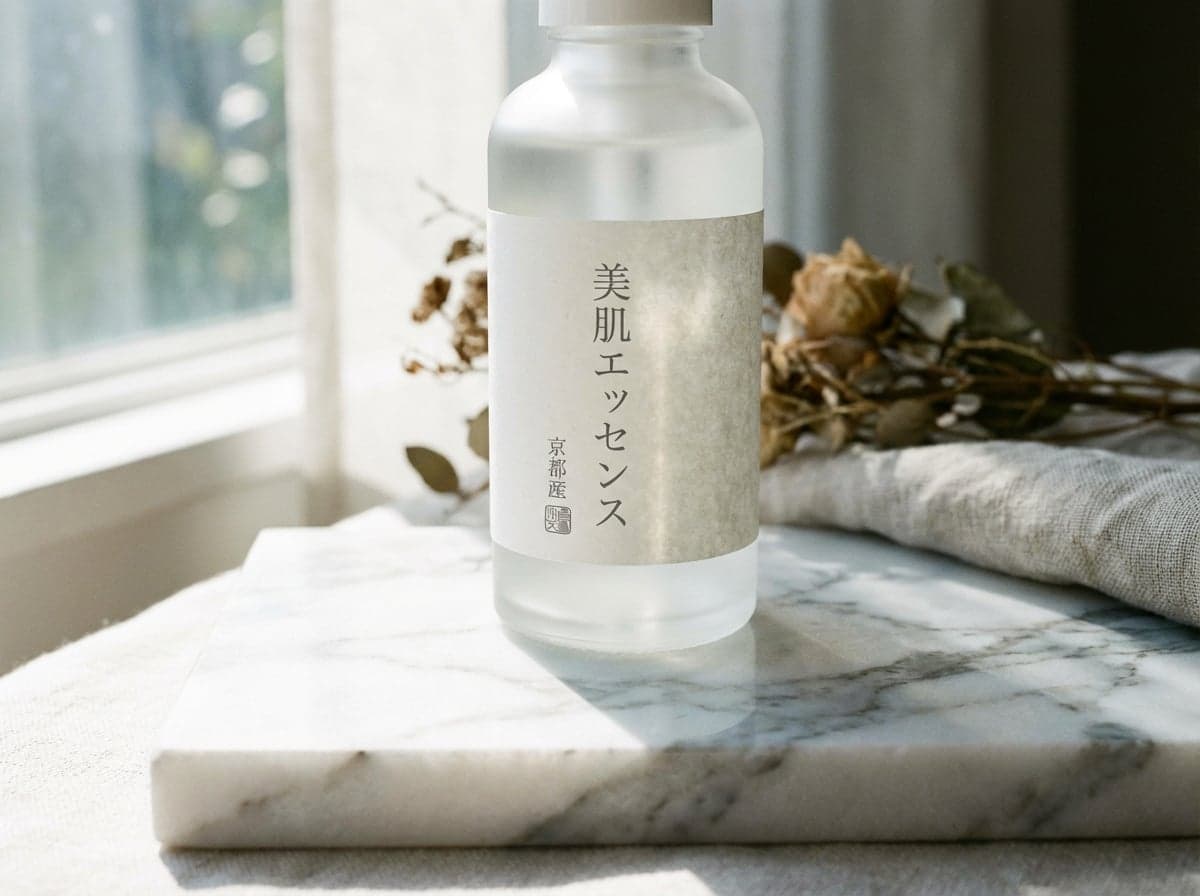
“Replace the product label with a clean minimal Japanese typographic design, match the marble surface lighting”
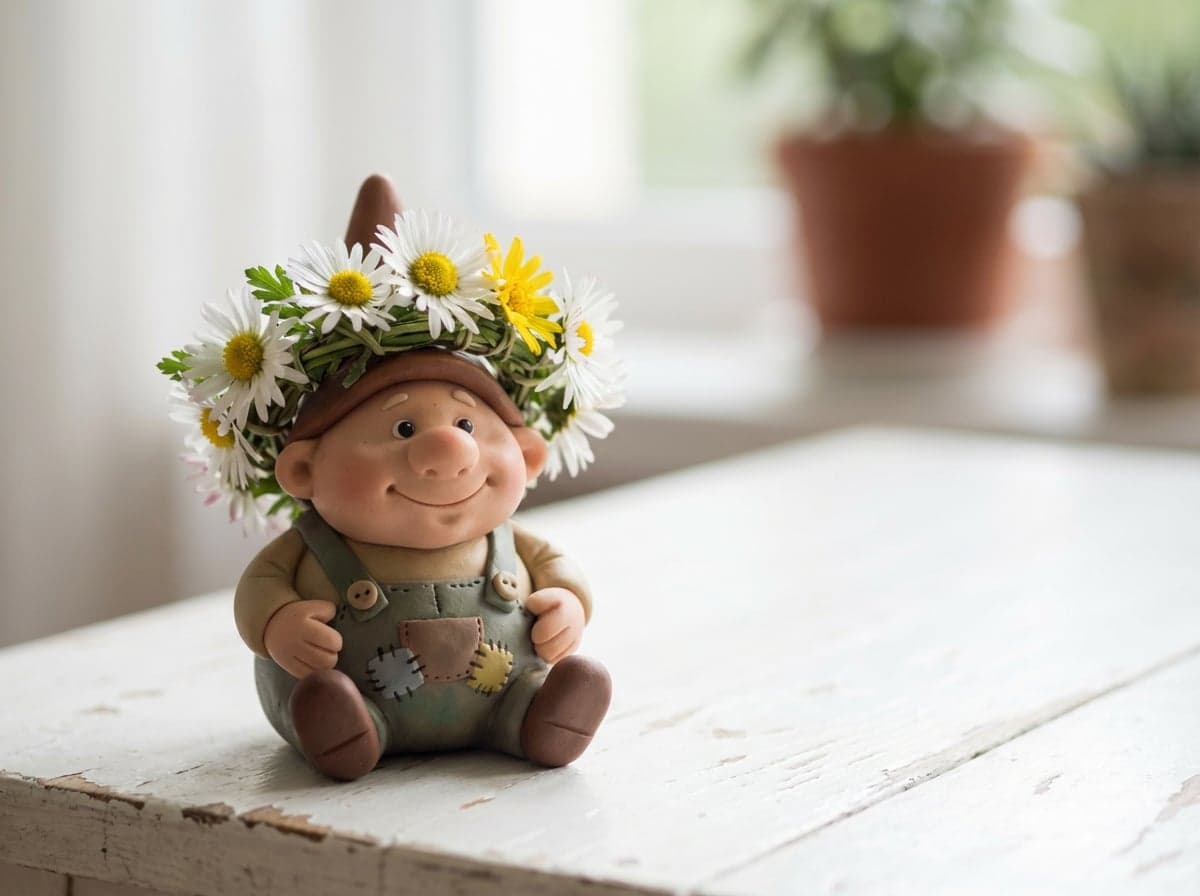
“Extend the left edge of this landscape photograph to show more of the coastline, golden hour lighting continuous”
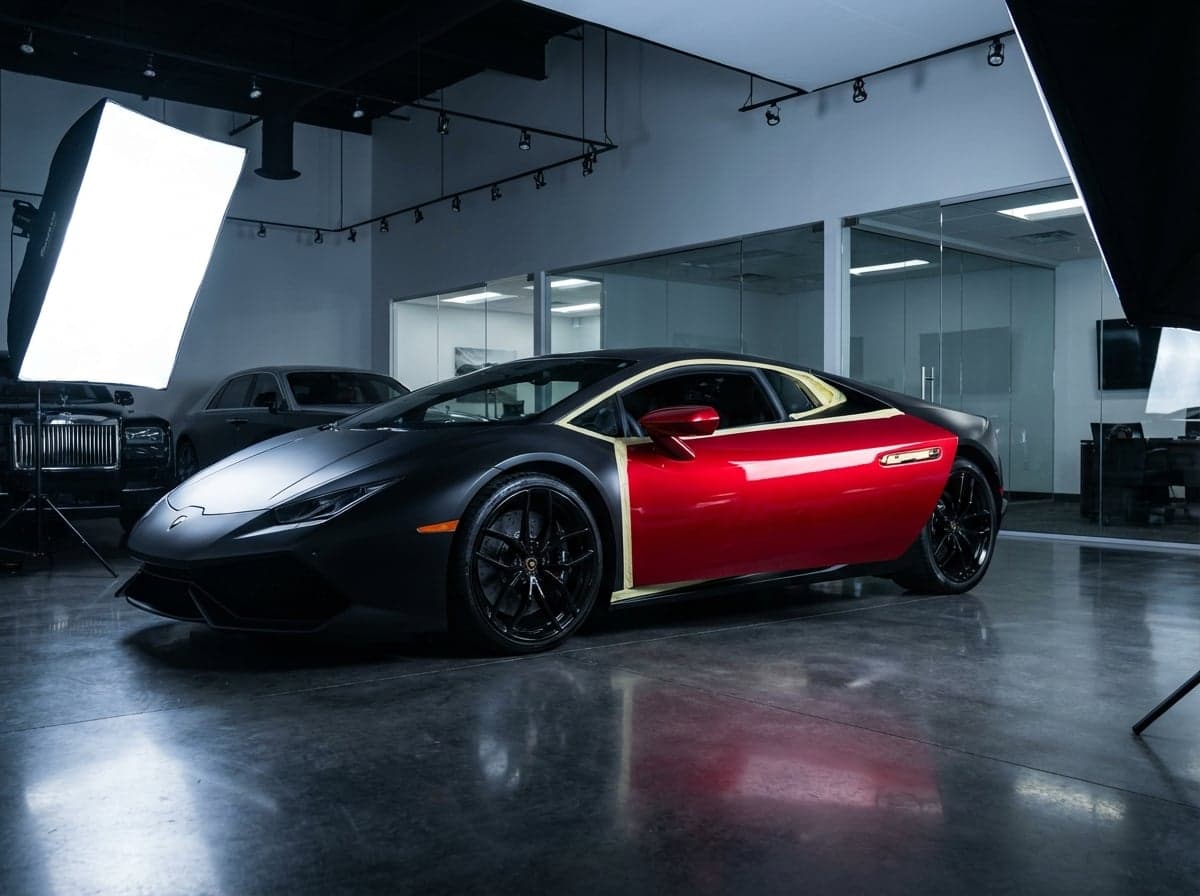
“Swap the concrete wall behind the model for a richly textured timber panel, preserve the direction of light”
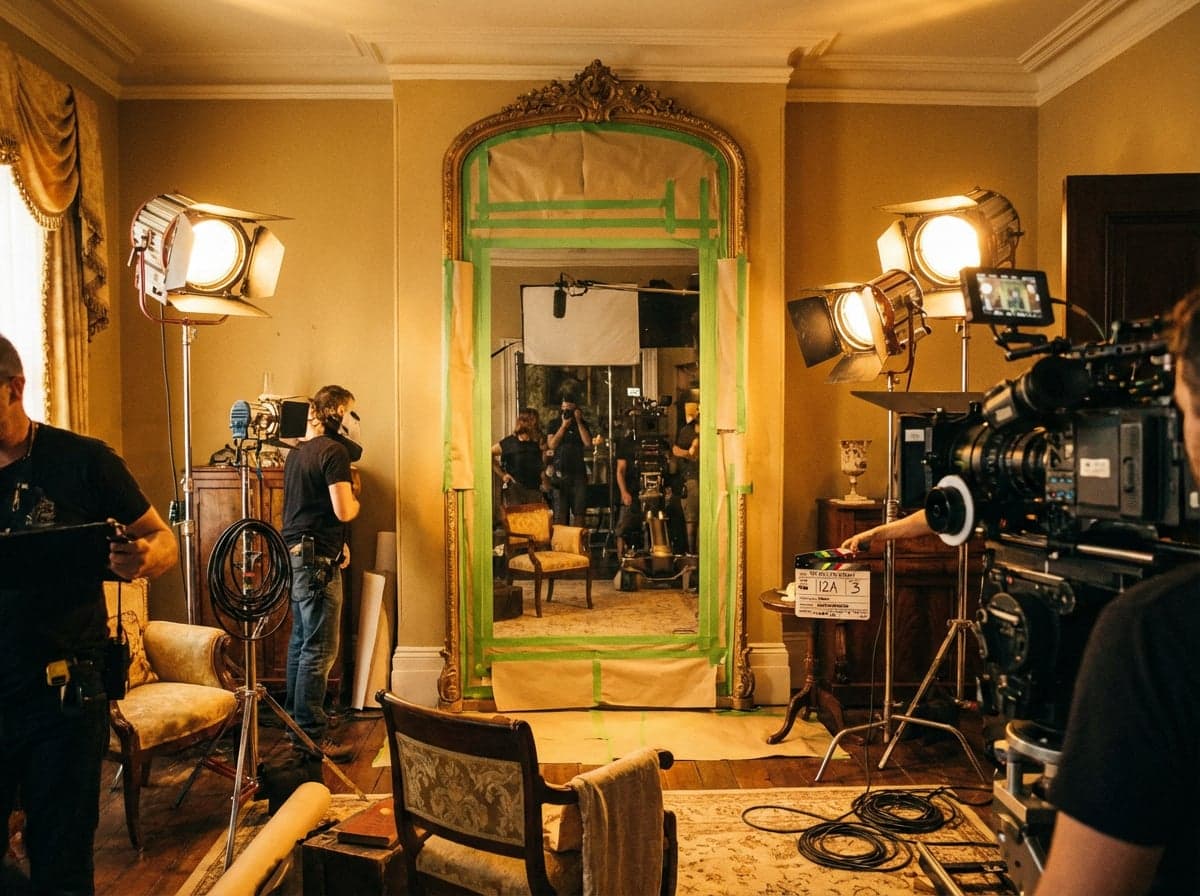
“Remove the tourists from the background of this architectural shot, reconstruct the paved plaza underneath”
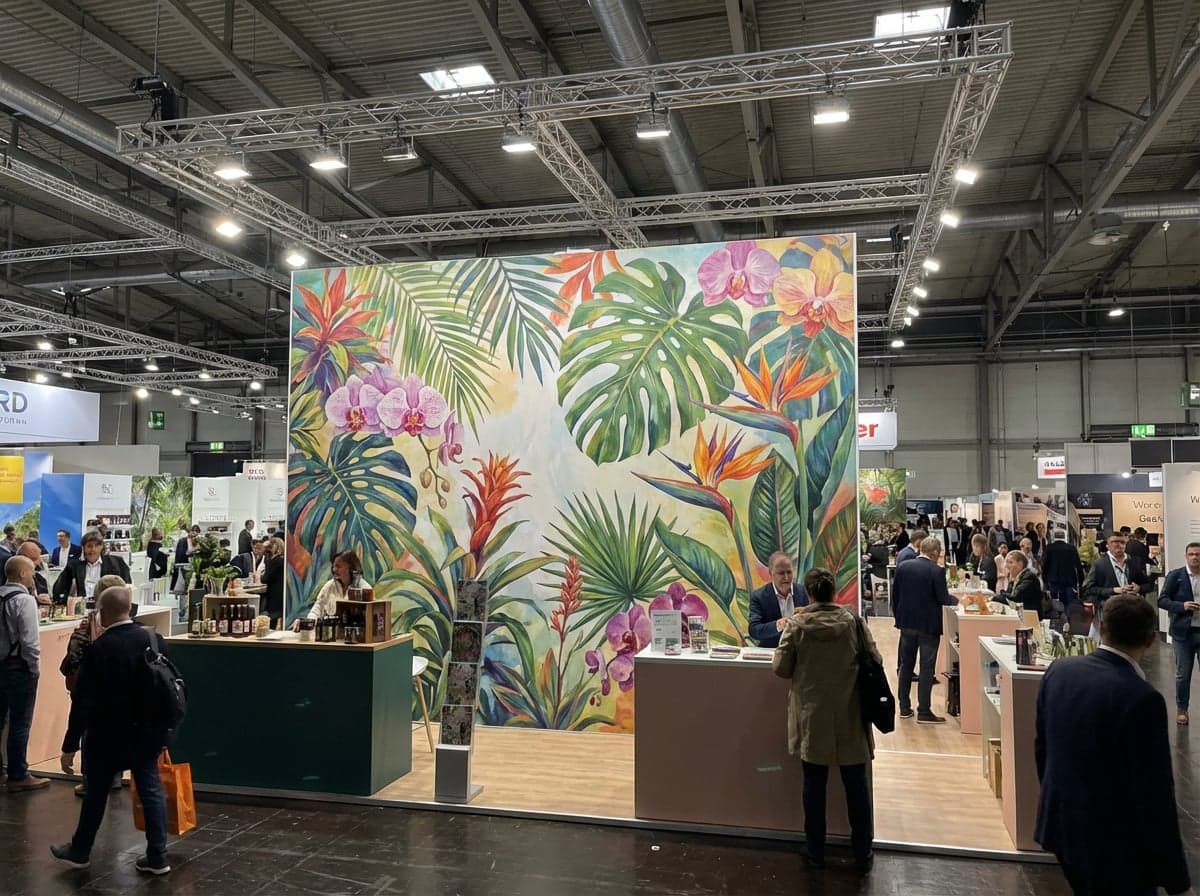
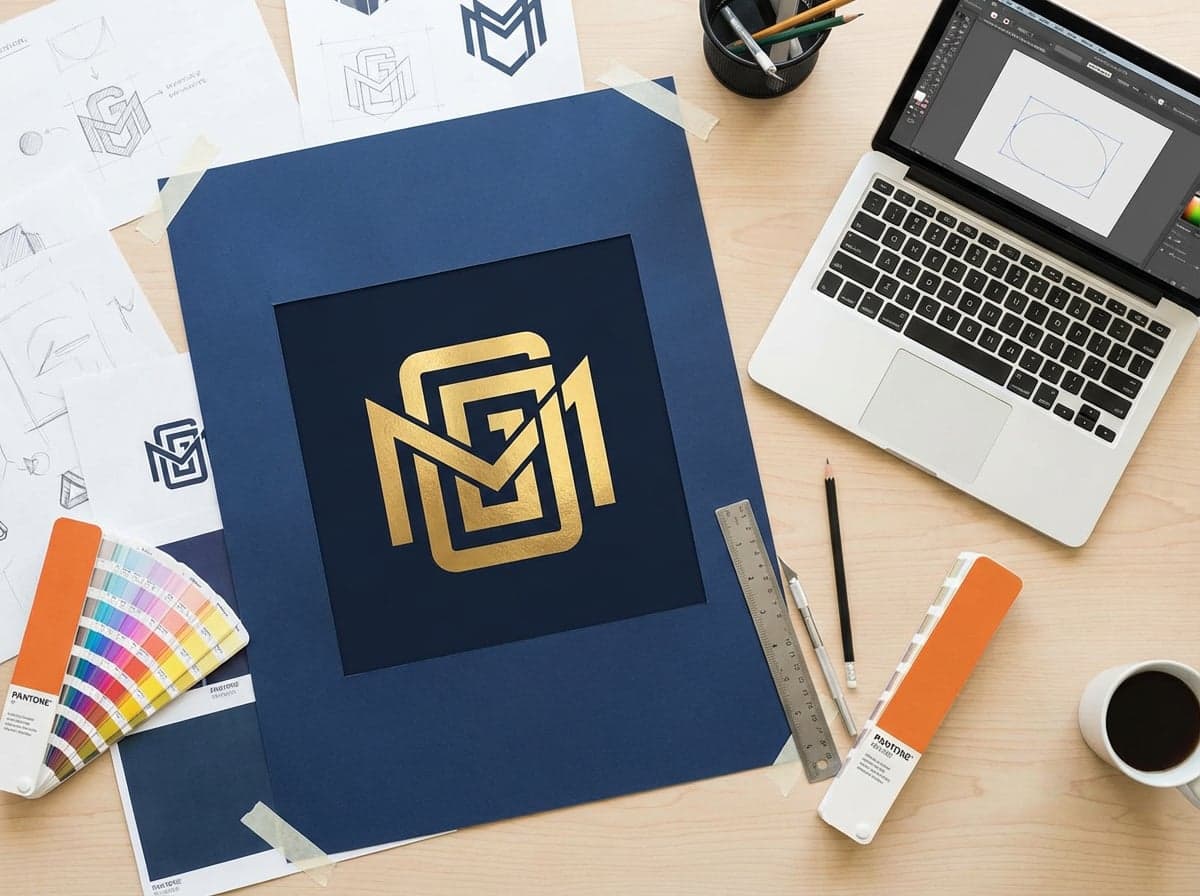
“Replace the central logo with a geometric gold foil monogram on dark navy, keep the poster layout”
“Remove the scaffolding from the facade and extend the brickwork behind it to match the existing pattern”
“Replace the product label with a clean minimal Japanese typographic design, match the marble surface lighting”
“Extend the left edge of this landscape photograph to show more of the coastline, golden hour lighting continuous”
“Swap the concrete wall behind the model for a richly textured timber panel, preserve the direction of light”
“Remove the tourists from the background of this architectural shot, reconstruct the paved plaza underneath”
“Replace the central logo with a geometric gold foil monogram on dark navy, keep the poster layout”
How it works
Describe your vision
Type a detailed prompt or upload a reference sketch, photo, or mood board.
Choose your settings
Pick your resolution and aspect ratio. See the credit cost before you generate.
Generate in seconds
Your image is delivered in seconds. Download, iterate, or pipe into video.
Ready to create with Inpainting?
Jump into the Studio and start generating. Plans from $11/month.
Mask-based editing that leaves the rest of the image untouched.
Inpainting solves one problem exceptionally well: changing a specific region of an image while everything outside the mask stays pixel-perfect. It is not a full-image regenerator. You give it one base image, one mask, and a prompt describing what should appear in the masked area, and it concentrates on that region, producing edits that integrate naturally with the surrounding lighting, perspective, and texture.
In Stensyl, inpainting is backed by GPT Image 2's edit engine. The mask tells the model where to work, so an object comes out, a material swaps, or a blemish disappears without disturbing the rest of the frame. The result reads as native, not composited.
The use cases cluster around precision work. Product photography where a single element needs replacing. Architectural visualisation where a specific material or element is wrong. E-commerce catalogues where consistent, region-only edits matter. It also handles outpainting, extending an image beyond its original frame with content that matches the existing composition.
Region-only editing
Everything outside your mask stays untouched while the masked area regenerates at full model quality. No degradation to the rest of the image, no bleed across the mask boundary.
Outpainting with context awareness
Extend an image beyond its original frame and the model generates continuation content that matches lighting, perspective, and style. Useful for turning square product shots into wide hero banners, or recovering content lost to a tight crop.
Mask however you work
Paint over the area you want to change and describe the result. The model reads the mask as the edit region and leaves the rest of the frame exactly as it was.
Questions about Inpainting.
Why Stensyl?.
Ready to create with Inpainting?
Professional image generation. Plans from $11/month.