Veo 3.1 for Motion Designers: Text-to-Video for Broadcast.
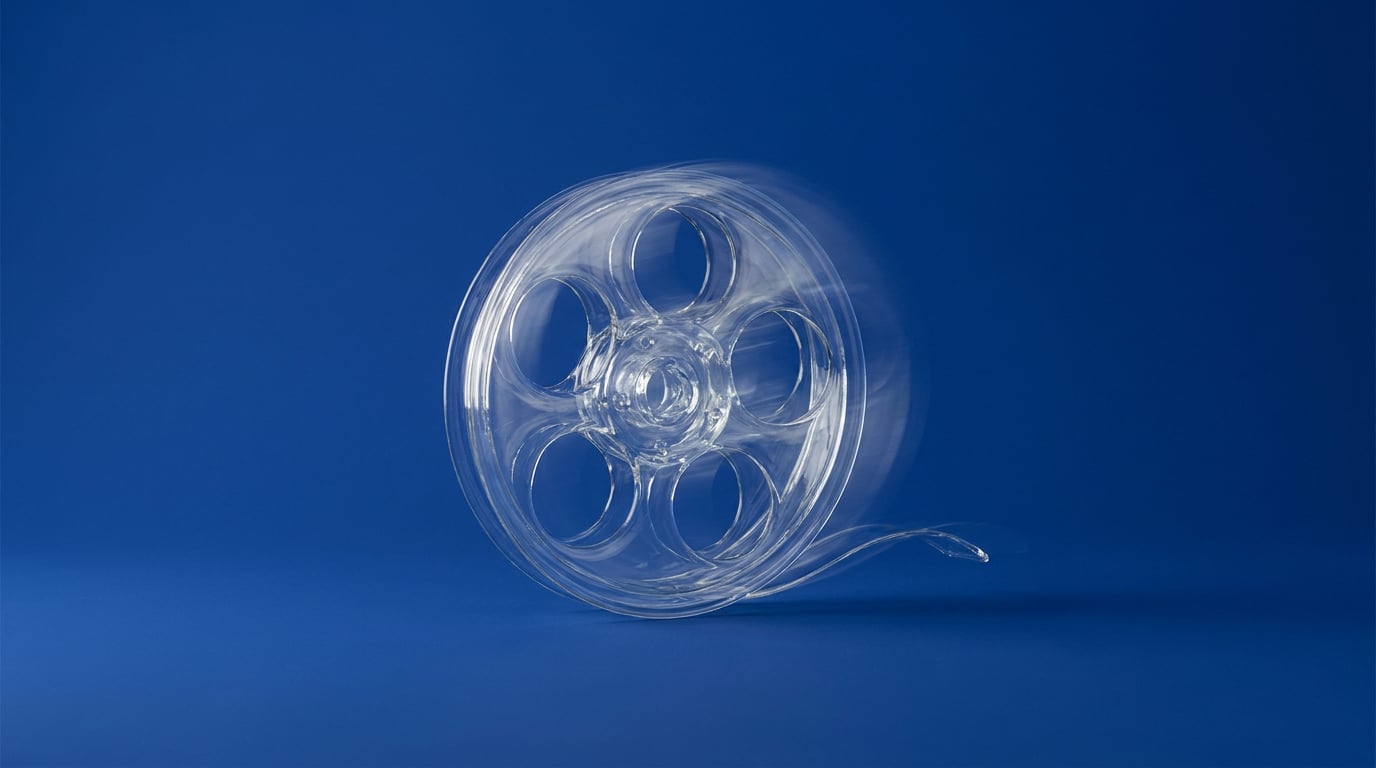
Most text-to-video looks great until it hits a broadcast timeline. Here's where Veo 3.1 holds up for motion designers, and where it still needs a fix pass.
Why Broadcast Work Breaks Most Text-to-Video Models
Broadcast has rules that consumer AI video tools were never built to respect. Fixed frame rates. Safe title and action areas. Clean loops for idents that need to run thousands of times without a viewer ever spotting the seam. Most text-to-video models optimise for a phone screen scrolling at speed, where a flicker or a soft edge disappears into compression. A calibrated broadcast monitor forgives nothing.
The failure points show up in predictable places. Temporal flicker creeps into fine textures and gradients, especially over multi-second shots at 24 fps. Logos and lower thirds drift when a model is told to "keep centred" but has no real concept of a locked graphic element. Motion blur goes inconsistent between cuts, which becomes obvious the moment generated footage sits next to a live-action plate in the same sequence. None of this matters for a 15-second social clip. All of it matters when a client is running your ident through a QC pass frame by frame.
That's the actual bar. "Holds up" doesn't mean it looks good in a WhatsApp preview. It means the footage survives grading, compositing, and a technical QC checklist covering legal range, loudness, aspect ratio and cadence, the same checklist live-action plates have always had to clear. Veo 3.1 is one of the few generative video models that gets close enough to that bar to be worth testing against it, not because it's a broadcast tool by design, but because its temporal coherence and camera control have moved further than most competitors.
The question for motion designers isn't "does this look impressive?" It's "would this survive the same QC pass as a licensed stock plate?"
Where Veo 3.1 Earns Its Place in the Timeline

Veo 3.1 generates 8-second base clips that chain into extensions, and this is where it becomes genuinely useful for broadcast-adjacent work rather than just novelty generation. The strongest use case isn't a hero shot with a product and a logo locked in frame. It's texture-driven B-roll: atmospheric cloud movement, particle drifts, light streaks, liquid and fabric motion. Exactly the kind of abstract, physically-plausible movement that underlays a channel ident or a sports bumper without needing precise object placement.
Camera moves hold up well over 5 to 10 second durations. A slow push, a crane-style sweep, an orbiting camera around an abstract form: these stay physically plausible in a way that earlier text-to-video generations struggled with. That consistency is exactly what broadcast pacing needs, because a promo cut that jumps in scale or drifts off its intended trajectory reads as broken the instant it's placed next to a locked live-action shot.
Take a practical example. A network wants a 12-second ident built around evolving clouds and drifting particles. The traditional route is a licensed stock plate, paid per clip, matched loosely to brand colour in the grade. The generative route: an 8-second Veo base plus one extension, prompted for the exact particle density and light quality the brand guidelines call for, then graded to match. You're not paying a licence fee per use. You're paying for generation credits, and you can iterate the prompt until the motion character is right before committing to a longer render.
Where it's weaker matters just as much. In-frame text is still soft at the edges, with kerning and colour drifting slightly across a sequence. Precise brand colour matching isn't something the model exposes controls for. And anything needing frame-perfect sync to a beat, a promo cut landing exactly on a musical hit, is better handled by cutting the generated footage into an edit than trusting the model's own timing.
Veo 3.1's real strength is atmosphere and camera motion, not typography or brand-locked colour. Use it where the shot needs to feel right, not where it needs to be exact.
Building the Prompt-to-Delivery Workflow
The workflow that actually gets Veo footage to a broadcast-ready state runs through several surfaces, not one generation button.
- Start in Video. The Video surface (/generate/video) is where prompt iteration happens cheaply. Test camera language, material descriptions and motion character on shorter, lower-cost generations before committing credits to an 8-second render you intend to extend. This is the exploration phase, not the delivery phase.
- Lock composition in Boards. Boards lets you collect visual references and group frames into start and end scenes, which is exactly what Veo 3.1's frame-to-video capability needs. Set a starting frame and an ending frame, and the generation fills the transition between them with the camera direction and composition you've already planned, rather than leaving the model to guess.
- Bring approved clips into Motion. Once a generation is approved, Motion is the Remotion-based export stage where the actual broadcast constraints get enforced: safe areas, caption placement, precise timing against a frame grid. This is where a generated clip stops being an AI experiment and starts being a deliverable.
- Finish in Editing. Loop the sequence through Editing's Timeline for caption burn-in, final trims, and the last QC pass before hand-off. The OMNI lane inside Editing lets you describe a small fix in words, rather than re-rendering the whole sequence for a minor correction.
This mirrors how motion designers already work with live-action plates: generate or shoot, review against a board, cut into a timeline, grade, caption, deliver. Veo 3.1 slots into the "generate" step. It doesn't replace the rest of the pipeline.
Cross-Discipline Comparison: Same Model, Different Bar

The same Veo 3.1 output can be broadcast-ready for one team and merely a rough draft for another, because QC checks completely different things depending on the discipline.
A motion designer cutting a network promo needs frame-accurate loops, clean safe areas, and motion blur that matches whatever live-action or graphics elements it's cut against. Their QC pass is unforgiving on exactly the details Veo is weakest at: brand colour and in-frame text.
A content and social editor cutting a reel cares far more about hook speed and scroll-stopping novelty than pixel-perfect colour matching. A slight flicker or soft edge gets absorbed by platform compression anyway. For this discipline, Veo 3.1's rougher edges barely register, and the cost advantage of Lite-tier generation for high-volume, high-iteration content makes it an easy fit.
A marketing and advertising team building a paid campaign sits somewhere in between. Brand colour consistency across cuts is non-negotiable, but the shot doesn't need broadcast-grade safe areas. The common pattern here is generating brand-critical assets, logos, product colourways, typography, in Graphics, then compositing them over Veo-generated motion plates. The video model handles atmosphere; the graphics tool handles anything the brand guidelines are strict about.
| Discipline | What QC actually checks | Where Veo 3.1 fits |
|---|---|---|
| Motion design (broadcast) | Safe areas, frame accuracy, cut-to-cut consistency | Background atmosphere, not hero graphics |
| Content & social | Hook speed, watch time, novelty | Full clip generation, high iteration volume |
| Marketing & advertising | Brand colour, logo accuracy across cuts | Motion plate, composited with Graphics assets |
Same model, same generation, three different verdicts. The discipline defines what "good enough" means, not the tool.
The Fix Pass: What to Clean Up Before Delivery
No Veo 3.1 output should go straight from generation to transmission. The fix pass is short but non-negotiable for broadcast work.
- Grade against brand guidelines, not the raw output. Veo doesn't expose colour management or LUT controls, so treat every generated clip as an ungraded plate. Match it to brand palette in the same pass you'd grade a live-action shot.
- Re-time in Motion. Extended sequences can land slightly off the duration you actually need. Use Motion's Remotion pipeline to re-time cuts so generated footage sits on the same grid as live-action or graphics elements around it.
- Use OMNI for small fixes. If a sequence is 95% right and only needs a minor recolour or an obvious artefact removed, describe the fix in words through Editing's OMNI lane rather than re-rendering the whole clip. This saves credits and keeps everything you already approved intact.
- Budget credits by shot importance. Iterate cheap first. Explore prompt phrasing and camera direction in Video before committing to longer, higher-cost renders. Save the heavier generation passes for shots that have already survived a rough edit and are genuinely going to make the final cut.
Treat every Veo 3.1 clip as a plate, not a finished deliverable. Grading and re-timing are not optional extras, they're the difference between a shot that passes QC and one that gets rejected.
When to Reach for Something Else Instead

Two situations call for a different tool entirely, not a better prompt.
If the shot needs an exact product colourway or precise logo placement, generate that asset in Graphics and composite it over the video plate. Prompting text-to-video to hit a specific spectral brand colour is asking the model to do something it isn't built for. This applies as much to automotive colourways and product packaging as it does to a channel bug sitting in the corner of a broadcast frame.
If the piece needs a talking presenter or a voiceover that has to match a script word for word, pair Veo-generated atmosphere with Avatar rather than trying to force reliable lip sync out of a general-purpose video model. Avatar is built specifically for reusable presenters and talking-photo output, which is a more direct route to a script-accurate result than coaxing dialogue timing out of a model designed for camera motion and physics.
Veo 3.1 is a strong first-pass tool for atmosphere, texture and camera motion that holds together across several seconds without falling apart. It is not a replacement for the compositing, grading and QC pass that broadcast delivery has always demanded, and treating it as one is how rough edges end up on air. Use it where it's strong, hand off to the tools built for precision where it isn't, and the workflow holds up all the way to transmission.
Keep reading.

Try Stensyl for yourself
Image, video, 3D, chat, and document drafting. Every AI model, one studio. Plans from $11/month.